![Horizontal color logo transparent-1.png]](https://www.schoolytics.com/hs-fs/hubfs/Horizontal%20color%20logo%20transparent-1.png?height=40&name=Horizontal%20color%20logo%20transparent-1.png)
This article is for administrators with an active Schoolytics subscription.
Default Settings
When staff login to Schoolytics, the account defaults to a Teacher role, allowing them to view just the courses for which they are a teacher or co-teacher.
Updating Staff Permission
Note: Only G Suite / Workspace Admins can update staff permissions.
To manage staff in your organization as a Workspace Admin in Schoolytics, click the avatar icon on the bottom left corner to take you to your Manage Organization page:
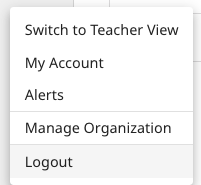
https://app.schoolytics.com/c/organization/staff
Then click Manage Staff Access
From here you will see a list of staff who have already logged into Schoolytics.
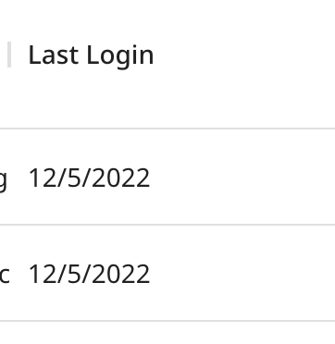
To change staff access, click edit user permissions.
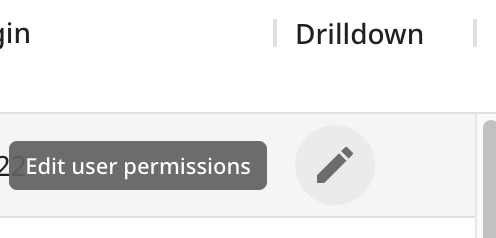
From here, there are four roles a staff member can have:
- Admin Viewer - this user can view all student records in the organization, but cannot add new users
- Org Unit Admin Viewer - this user can only view records for students within the specified org unit
- Teacher - this user can only view student records for courses which they are an owner or co-teacher
- Staff - this user can only view student records for courses which they are an owner or co-teacher
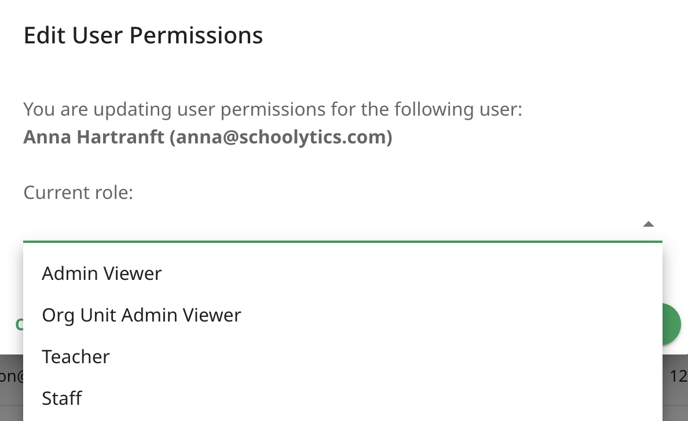
Clicking update will save the change.